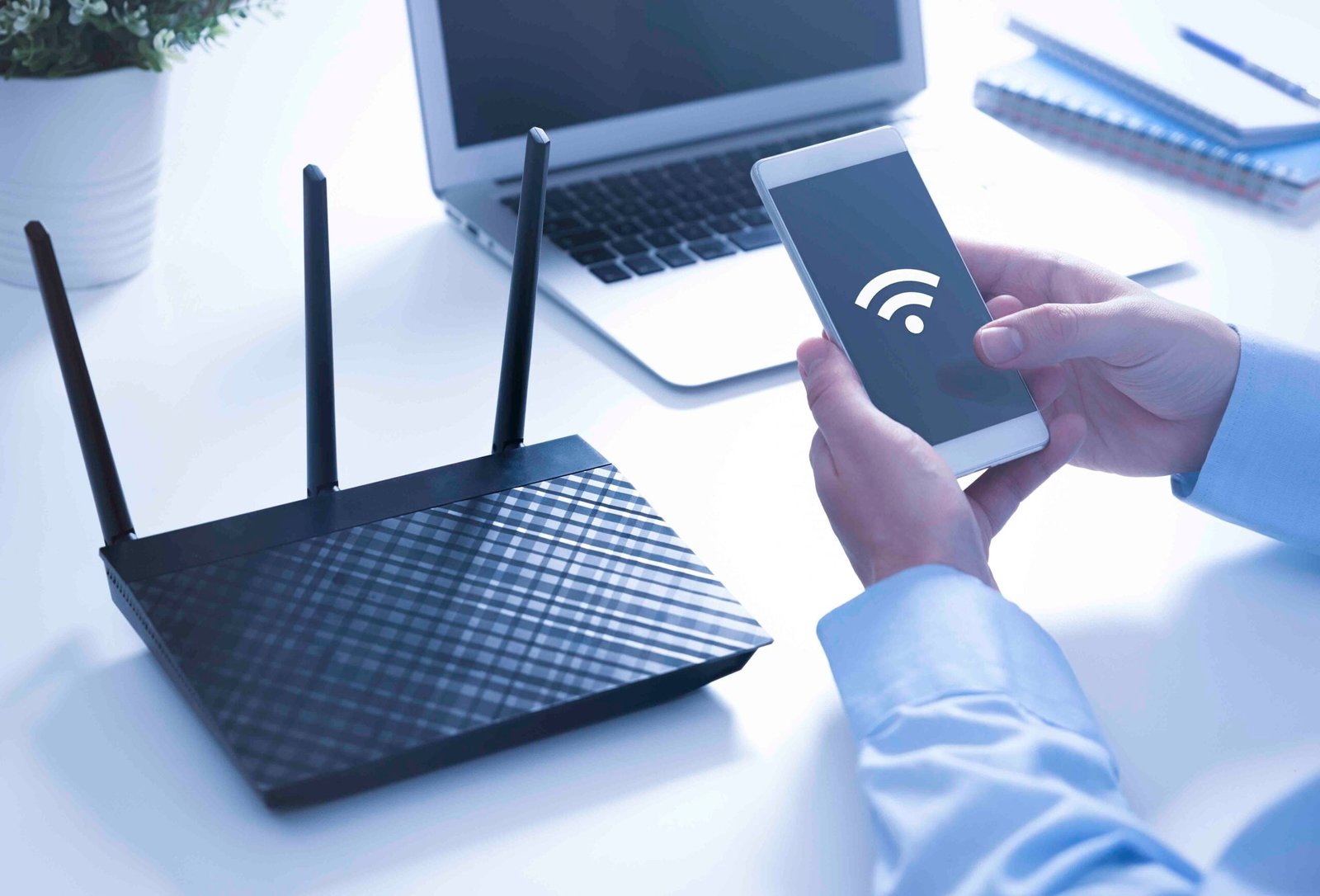
A dependable internet connection has become essential for work, education, entertainment, and everyday communication. Yet even a fast broadband package can feel disappointing when the wireless network is poorly arranged. Video calls may freeze, downloads can slow down, and devices in distant rooms may repeatedly disconnect. In many cases, the issue is not the internet plan itself but the way the home network is positioned, configured, and used.
For additional guidance on router access, visit 10.0.0.0.1 and confirm your router’s actual gateway address before signing in.
Improving Wi-Fi does not always require buying an expensive router or upgrading to a higher monthly package. A few practical adjustments can make a noticeable difference. The following steps explain how to create a more consistent wireless experience while keeping the network easy to manage.
1. Choose a Better Location for the Router
Router placement has a major effect on wireless coverage. Wi-Fi signals spread through the home, but walls, floors, metal objects, mirrors, and large appliances can weaken them. Placing the router inside a cabinet, behind a television, or near the floor can limit its reach.
For more balanced coverage, position the router in an open and central area whenever possible. A shelf or elevated surface is usually better than a closed cupboard. Keep it away from cordless phones, microwave ovens, and other equipment that may create interference. If the internet connection enters the home at one end of the building, a longer Ethernet cable may allow the router to be placed in a more useful location.
2. Understand the Difference Between 2.4 GHz and 5 GHz
Many modern routers offer both 2.4 GHz and 5 GHz Wi-Fi bands. The 2.4 GHz band generally covers a wider area and can pass through obstacles more effectively, but it is often more crowded and may deliver lower speeds. The 5 GHz band can provide faster performance at shorter distances, although its signal usually weakens more quickly through walls.
Use the band that suits each device and its location. A laptop used close to the router may benefit from 5 GHz, while a smart device in a distant room may work more reliably on 2.4 GHz. If the router combines both bands under one network name, its band-steering feature may select the connection automatically.
3. Review Router Settings Instead of Changing Them Randomly
A router’s administration interface provides options for wireless channels, network names, security, guest access, and connected devices. Before making changes, identify the correct local gateway address for the specific router. Addresses such as 192.168.1.1 are common, but they are not universal. The device’s network settings or the manufacturer’s documentation can help confirm the correct address.
If you need to understand how a router’s local administration page is commonly accessed, this guide to 192.168.1.1 router access offers additional background. The correct gateway still depends on your own router; use the device’s documentation to confirm it, and enter credentials only on the router’s local sign-in page.
4. Reduce Network Congestion
A home network can become crowded when several people stream high-resolution video, play online games, download large files, and attend video meetings at the same time. Older routers may struggle to handle many active devices efficiently. Start by checking which devices are using the connection and whether background downloads or automatic backups are running.
Where the router supports Quality of Service (QoS), you may be able to prioritize activities such as video calls or gaming. The exact options vary by model. Avoid enabling unfamiliar advanced settings without understanding their purpose, and record the original configuration before making significant changes.
5. Use Wired Connections for High-Demand Devices
Wi-Fi is convenient, but a wired Ethernet connection can offer more consistent performance for devices that stay in one place. Desktop computers, gaming consoles, smart televisions, and workstations may benefit from a direct connection, particularly when they are used for large downloads, online gaming, or frequent video meetings.
Moving some high-demand devices to Ethernet can also reduce competition for wireless airtime. If running a cable across the home is impractical, a mesh Wi-Fi system or a properly configured access point may help extend coverage. Choose equipment that is compatible with the existing router and the size and layout of the property.
6. Consider a Mesh System for Larger Homes
A single router may not provide reliable coverage in a large, multi-storey, or unusually shaped home. Mesh systems use multiple nodes to distribute wireless coverage across different areas. For best results, place additional nodes where they still receive a strong signal from the main unit, rather than in the exact spot where Wi-Fi has already disappeared.
A mesh system is not automatically necessary. First test the existing router in a better position and identify the rooms with weak coverage. If only one area has trouble, a compatible access point may be a simpler and less expensive solution.
7. Keep the Network Secure and Up to Date
Performance and security should be considered together. Use WPA2-AES or WPA3 security where available, choose a strong Wi-Fi password, and replace default administrator credentials. A separate guest network is useful for visitors and devices that do not need access to personal computers or shared storage.
Check the manufacturer’s support page for firmware updates and install them according to its instructions. If the router is no longer receiving security updates, consider replacing it with a supported model.
8. Test Changes One at a Time
When troubleshooting, change one setting at a time and test the result from the same location using the same device. A speed test can help compare results, but it should not be treated as the only measure of network quality. Also pay attention to signal stability, latency during calls or games, and whether devices remain connected.
If the router’s administration page does not open, confirm that your device is connected to the correct Wi-Fi network and check the default gateway shown in its network settings. For general background on a commonly used gateway, see this 10.0.0.1 router login and setup resource. Not every router uses this address, so verify the gateway for your specific model before proceeding. If only one device is affected, update its Wi-Fi driver or operating system and reconnect to the network.
Conclusion
A reliable home Wi-Fi network is usually the result of several sensible decisions rather than one complicated adjustment. Place the router in an open central location, choose the right band for each device, reduce unnecessary congestion, and use Ethernet for equipment that needs a stable connection. Keep security settings current and test configuration changes carefully. With a little planning, most households can improve everyday connectivity without immediately replacing all their networking equipment.
